
Two-factor authentication adds a second step when you sign in, using a code from an authenticator app on your phone. Your AutoSPF two-factor settings are managed in your DuoCircle account portal.
Opening your security settings
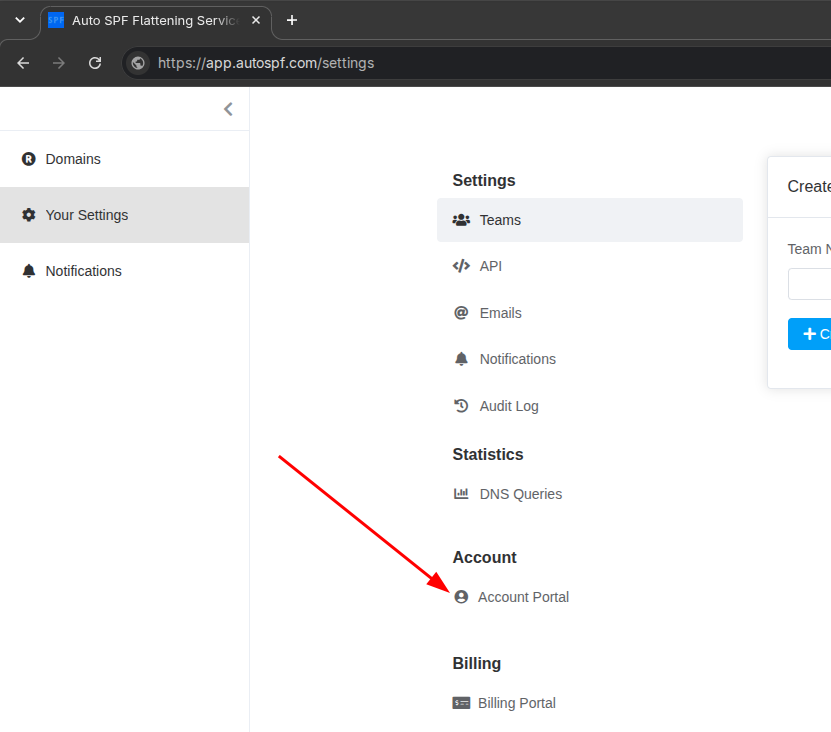
In AutoSPF, go to Your Settings and select Account Portal under Account.
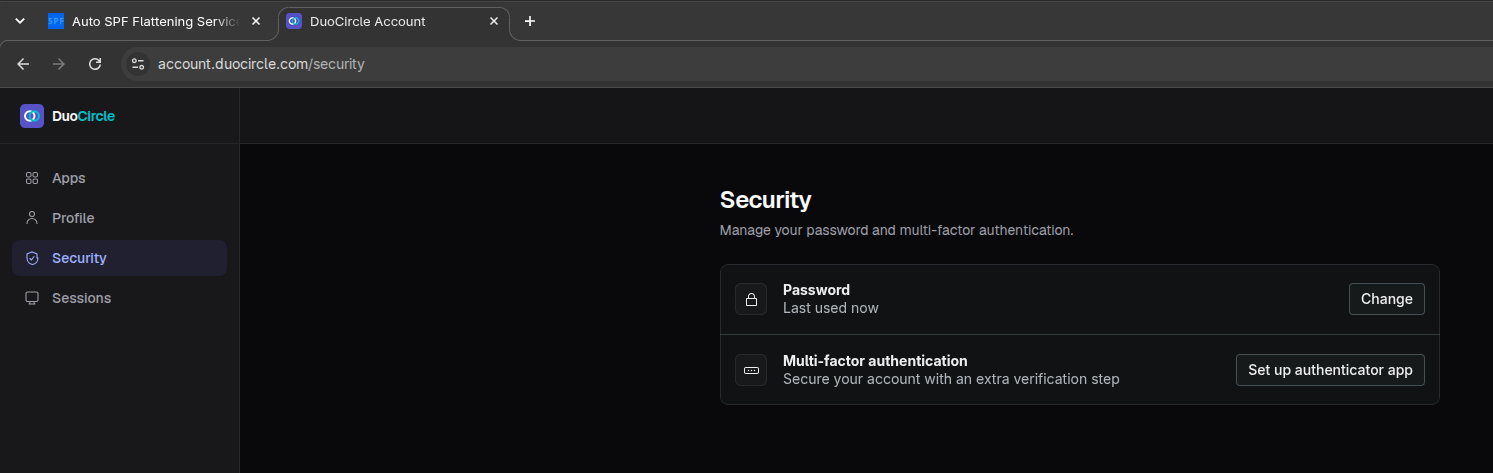
In the portal, select Security. You will see your password and your multi-factor authentication status.
Turning on two-factor authentication
- Choose to add an authenticator app.
- Scan the QR code with an authenticator app. 1Password, Google Authenticator, Authy and Microsoft Authenticator all work.
- Enter the six-digit passcode from the app to confirm.
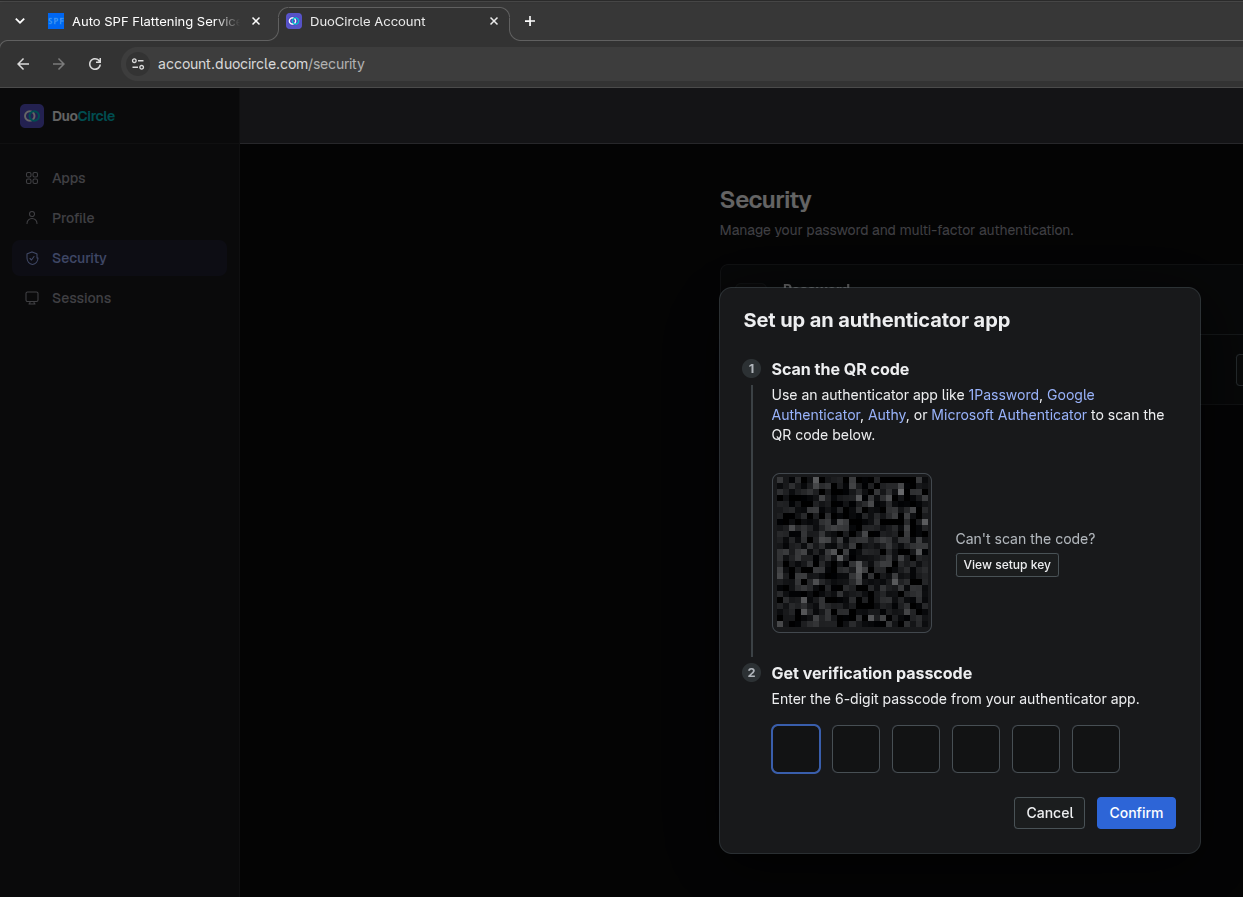
If you cannot scan the code, choose View setup key and enter the key into your app manually.
Signing in afterwards
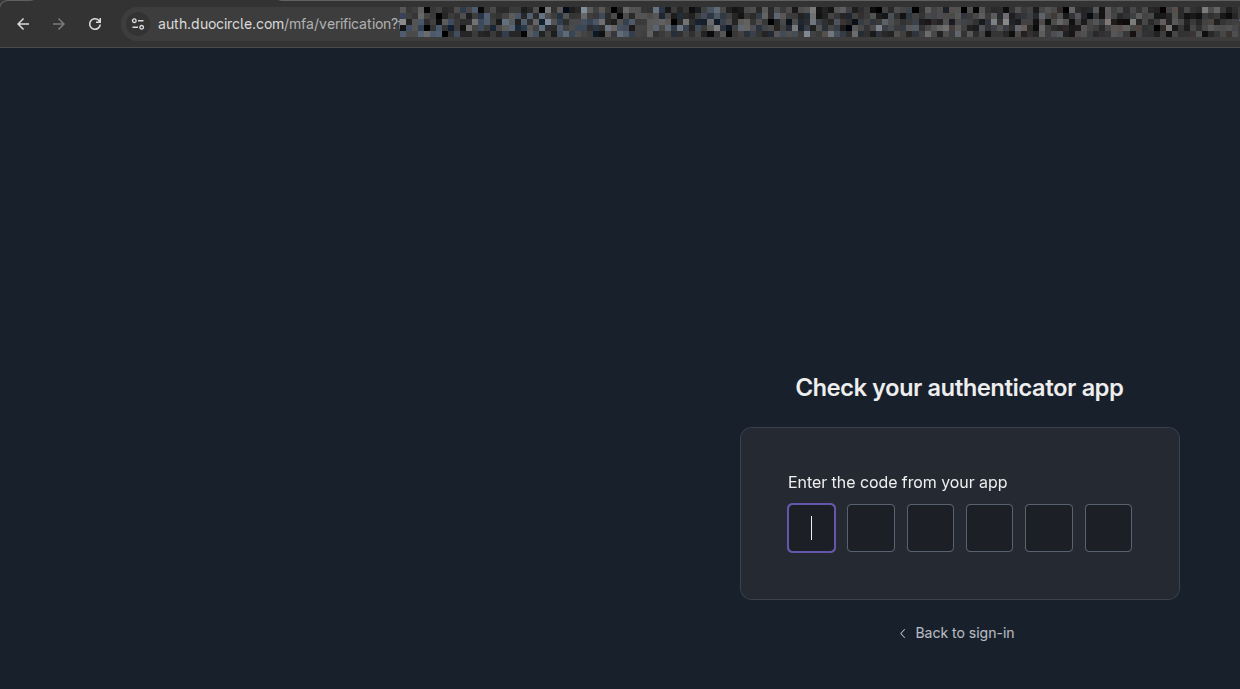
You will be asked for a code from your authenticator app each time you sign in.
If you already had two-factor authentication enabled
Your existing setup carried over automatically. Keep using the same authenticator app and the same codes. You do not need to set it up again.
Turning it off
Select Disable next to Multi-factor authentication on the Security page. We recommend leaving two-factor authentication switched on.
If you lose access to your authenticator app
Contact support and we will help you regain access to your account.